Help · ServiceM8
Using Zevik with ServiceM8
How to connect ServiceM8 to Zevik, send a quote with the Zevik experience, and what gets written back to ServiceM8 when the client responds.
On this page
1. What Zevik does with ServiceM8
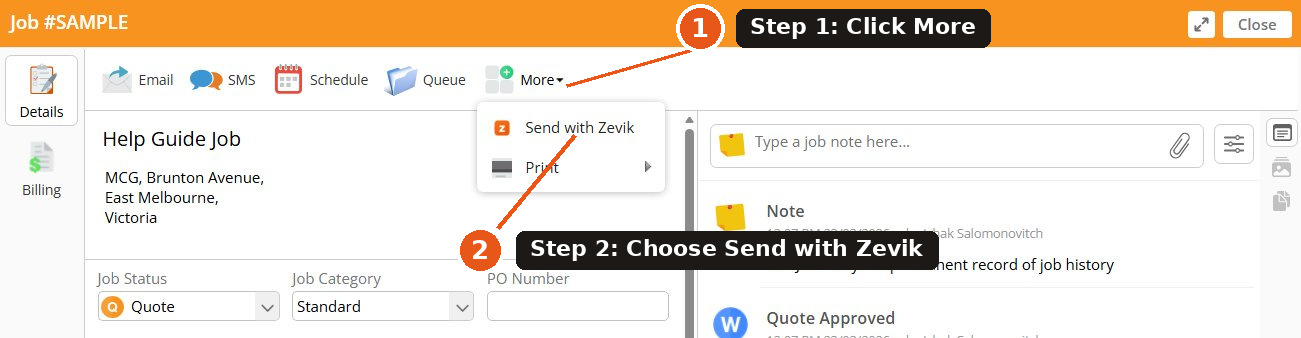
Zevik adds a branded client experience on top of the quotes you create in ServiceM8. You continue to build quotes in ServiceM8 as you normally would. When you are ready to send a quote, you click More → Send with Zevik on the job, and Zevik prepares a private link for your client.
The link includes:
- The original ServiceM8 quote PDF
- A plain-English voice explanation of the quote
- Your contractor intro video, if you have set one up
- A private chat thread (Zevik Chat) where your client can ask questions
- Response buttons: Approve, Ask a Question, Request a Revision, Request a Call
While the quote is open, Zevik tracks client interactions and can send SMS reminders if the client doesn't respond. When the client approves, Zevik writes a diary note back to ServiceM8 and updates the job status from Quote to Work Order.
2. How to connect ServiceM8 to Zevik
- Sign in to your Zevik account at app.zevik.io/dashboard.
- Go to Integrations from the dashboard sidebar.
- Find the ServiceM8 row and click Connect.
- You will be redirected to ServiceM8 to authorise the connection. Sign in to ServiceM8 if prompted, then approve the requested permissions.
- You will be returned to Zevik with the integration showing as Connected.
- The first time you click More → Send with Zevik on a quote, Zevik securely links your ServiceM8 account to your Zevik account. This happens automatically.
If you ever need to disconnect, return to Integrations and click Disconnect on the ServiceM8 row.
3. How to send a quote with Zevik
Inside ServiceM8:
- Open the quote you want to send.
- Click the More button at the top of the job.
- Choose Send with Zevik.
- You will be taken to Zevik to review the quote, then send.
Inside Zevik, you can:
- Review the extracted quote details
- Confirm the client's name, email and mobile number
- Listen to the voice explanation Zevik has prepared (required before sending)
- Edit the message your client will see
- Click Send to deliver the Zevik experience to your client
4. What your client receives
Your client receives a short email with a link to their Zevik quote experience. The page is mobile-friendly and includes:
- Your intro video — if you have uploaded one in Trust Media. Plays automatically at the top of the page.
- The quote header — title, total, and validity
- Voice explanation — a short audio walkthrough explaining what's included in the quote
- The original quote PDF — the same document ServiceM8 produces
- Zevik Chat — a private chat thread for the client to ask questions
- Response buttons — Approve, Ask a Question, Request a Revision, Request a Call
Clients don't need to install anything or create an account. They just open the link.
5. SMS follow-up
Zevik can keep the quote conversation moving even when you are busy.
Automated SMS reminders. If your client hasn't opened or responded to the quote, Zevik can send timed SMS reminders on your behalf. SMS reminders are sent from a Zevik-managed sender and reference the quote.
Manual SMS follow-up. You can also send a manual SMS to your client directly from the Zevik dashboard. Open the quote in Zevik and click Send SMS follow-up.
6. What happens when the client asks a question
If the client clicks Ask a Question or types in Zevik Chat, you will see the message in your Zevik dashboard. You can also receive an email notification so you don't miss it.
Reply to the client directly from the dashboard. Your reply appears in the client's Zevik Chat thread, and the conversation is preserved against that quote.
7. What happens when the client approves
When the client clicks Approve:
- The client sees a confirmation that their approval has been received
- You receive an email notification of the approval
- The quote is marked as approved in your Zevik dashboard
- Zevik writes a diary note back to the ServiceM8 job confirming the approval
- Zevik updates the ServiceM8 job status from Quote to Work Order and sets the work order date
From there, you can continue the work in ServiceM8 as you normally would.
8. What Zevik writes back to ServiceM8
Zevik writes back to ServiceM8 only at two moments:
When you send a quote with Zevik:
- A diary note is added to the job confirming the send and timestamp.
When the client approves:
- A diary note is added confirming the approval and timestamp.
- The job status is updated from Quote to Work Order.
- The work order date is set to the date of approval.
Zevik will only update jobs that are in Quote status. Jobs already in Work Order, Completed, or Unsuccessful are not modified by Zevik.
9. Troubleshooting
I don't see "Send with Zevik" in the More menu.
Make sure ServiceM8 is connected in Zevik (Integrations page) and that you have refreshed your ServiceM8 dashboard since installing the add-on. The add-on appears in the More menu only when the integration is fully connected.
The Send button in Zevik is disabled.
The Send button is disabled until the recipient has an email or mobile number, and you have listened to the voice explanation at least once. The disabled button shows specific copy explaining what to fix.
The client says they didn't get the email.
Check the recipient email address in Zevik for typos. Also ask the client to check their spam/junk folder. Zevik emails come from a notifications@zevik.io address — clients can mark this as safe to receive future quotes reliably.
The ServiceM8 job didn't update to Work Order after approval.
Zevik will not update jobs that are already in Work Order, Completed, or Unsuccessful status. If the job was in one of these states when the client approved, the status is left unchanged but a diary note is still added confirming the Zevik approval.
I disconnected ServiceM8 and now I'm having trouble reconnecting.
Disconnect again from the Integrations page, wait a few seconds, then click Connect. If the issue persists, sign out of ServiceM8 in another browser tab and try the connect flow again from Zevik.
10. Contact support
If you need help with the Zevik ServiceM8 integration, contact us at support@zevik.io.
Support requests are usually reviewed within 1–2 business days. Please include your business name and a description of what you were trying to do, so we can help you faster.